Guide
How to Add Mods to a Minecraft Server, Step by Step
Short answer: Install the same mod loader on the server that players use (Fabric, Forge or NeoForge, same Minecraft version), start it once, then stop it and copy the mod .jar files into the server's own mods folder. Only mods marked server-side or both belong there; client-only mods such as Sodium or Iris stay on players' PCs. Every player needs the same both-sides mods at the same versions.
How to add mods to a Minecraft server is the same job as modding your own game, with one rule on top: the server and every player must agree on the Minecraft version, the mod loader, and every mod that exists on both sides. Get the agreement right and the file copying takes minutes.
The steps below work for a server on your own PC and for a rented one; where a hosting panel changes a step, it says so. They assume Java Edition. Bedrock servers use add-ons, not mods.
Step 1: Pick one Minecraft version and one loader
Everything else follows from this choice, so make it first and write it down for your group. A Fabric server only loads Fabric mods, and Forge and NeoForge servers load their own. Mods are built for a specific Minecraft version: Fabric's documentation warns that a mod made for one version might not work on another, even within the same release line, so do not expect a 1.21.1 mod to load on 1.20.1 or on 26.x.
Choose the version your must-have mods support, not the newest release. Check each mod's version list on Modrinth or CurseForge before you commit; when a new Minecraft release comes out, many mods need time to be ported. The loader status page tracks which loaders have builds for each release.
The version also decides which Java the server needs. These come from the javaVersion field in Mojang's own version files, read 2026-10-21. A server started on a Java that is too old fails before it loads a single mod, with an UnsupportedClassVersionError.
| Minecraft version | Java the server needs |
|---|---|
| 26.1, 26.2, 26.3 | Java 25 |
| 1.20.5 to 1.21.11 | Java 21 |
| 1.18 to 1.20.4 (includes 1.20.1) | Java 17 |
| 1.17 and 1.17.1 | Java 16 |
| 1.16.5 and older | Java 8 |
Step 2: Sort your mods into client, server and both
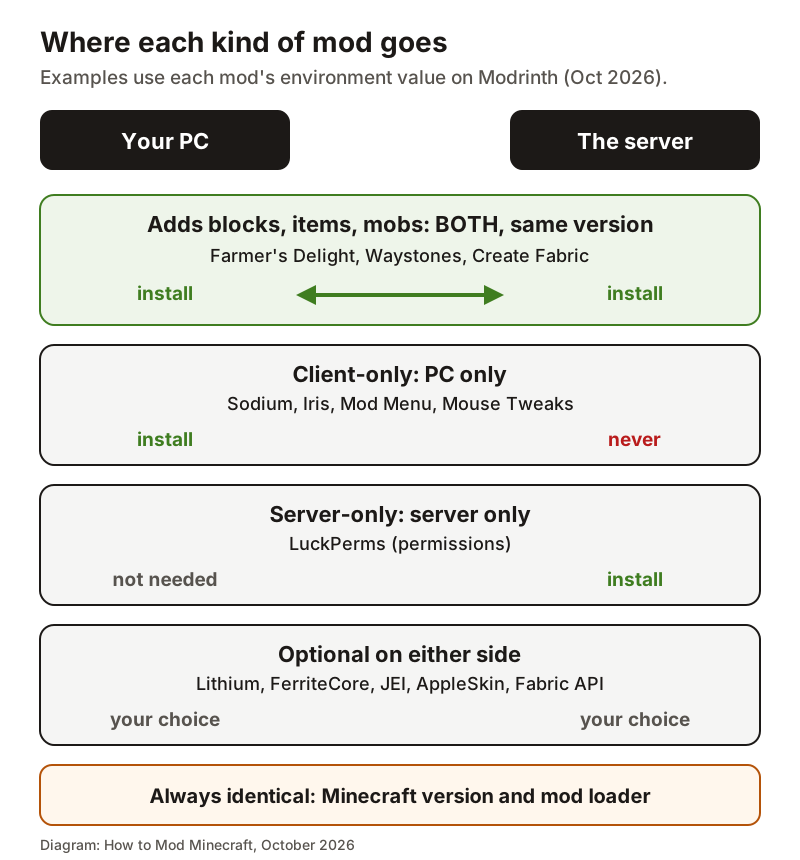
This is where most broken servers start. Every mod belongs to one of three groups, and Modrinth publishes which one for each project. Its API has long returned client_side and server_side fields with the values required, optional, unsupported or unknown; Modrinth's documentation now marks those as deprecated in favour of a newer environment field with values such as client_only, server_only, client_and_server and client_or_server.
The examples below are the values Modrinth returned for each project on 2026-10-21, both the new field and the old pair. Two things stand out. Performance mods split by what they optimise: Sodium renders, so it is client-only, while Lithium and FerriteCore work on either side. And some mods people think of as client mods, such as JEI and AppleSkin, are optional on both sides: they work alone on a client and add features when the server has them too. Modrinth's documentation recommends reading the environment on the specific version you download rather than on the project, because a project lists every environment its versions support.
| Mod | Modrinth environment | client_side / server_side (deprecated) | Put it on |
|---|---|---|---|
| Farmer's Delight | client_and_server | required / required | Server and every player, same version |
| Waystones | client_and_server | required / required | Server and every player, same version |
| Create Fabric | client_and_server | required / required | Server and every player, same version |
| Sodium | client_only | required / unsupported | Players only |
| Iris Shaders | client_only | required / unsupported | Players only |
| Mod Menu | client_only | required / unsupported | Players only |
| Entity Culling | client_only | required / unsupported | Players only |
| Xaero's Minimap | client_only_server_optional | required / optional | Players; the server copy is optional |
| LuckPerms | server_only | unsupported / required | Server only |
| Concurrent Chunk Management Engine (Fabric) | server_only_client_optional | optional / required | Server; optional for players |
| Lithium | client_or_server_prefers_both | optional / optional | Either or both |
| FerriteCore | client_or_server | optional / optional | Either or both |
| Just Enough Items (JEI) | client_or_server_prefers_both | optional / optional | Either or both |
| Simple Voice Chat | client_or_server_prefers_both | optional / optional | Both, if you want voice chat to work |
| Fabric API | client_or_server_prefers_both | optional / optional | Wherever a Fabric mod that needs it runs |
Step 3: Put the right Java on the server machine
On a server you run yourself, open a terminal in the server folder and run java -version. The first number must match the table in step 1. If several Java versions are installed, call the right one by its full path in your start script rather than changing the system default, so other programs keep working.
If your host's panel has a Java version or Docker image setting in its startup options, set it before installing the loader to the Java the table in step 1 gives for your Minecraft version.
Step 4: Install the loader on the server
Each loader ships its own server installer. All of them work in an empty folder, and the folder you run them in becomes the server.
Fabric offers a single server launcher jar on fabricmc.net/use/server: choose the Minecraft, loader and installer versions on that page, download the jar into an empty folder, and run it with the command it shows. It downloads the vanilla server itself on first run. The Fabric installer's Server tab does the same job if you prefer.
NeoForge's documentation has you download the installer jar, run it with --installServer, optionally set RAM in the generated user_jvm_args.txt, then start with run.sh on Linux and macOS or run.bat on Windows. Forge for 1.17 and later produces the same run.sh, run.bat and user_jvm_args.txt layout from its installer's server option.
On a rented server, if the panel has a server type, version or modpack setting, pick the loader and Minecraft version there and let the panel install it. Then continue at step 5.
Official server commands (replace the parts in angle brackets)
# Fabric: command shown on fabricmc.net/use/server
java -Xmx2G -jar fabric-server-mc.<mc>-loader.<loader>-launcher.<launcher>.jar nogui

# NeoForge: from docs.neoforged.net
java -jar neoforge-<version>-installer.jar --installServer
./run.sh        (Linux, macOS)
.\run.bat       (Windows)

# -Xmx2G is Fabric's example memory limit; raise it for larger packs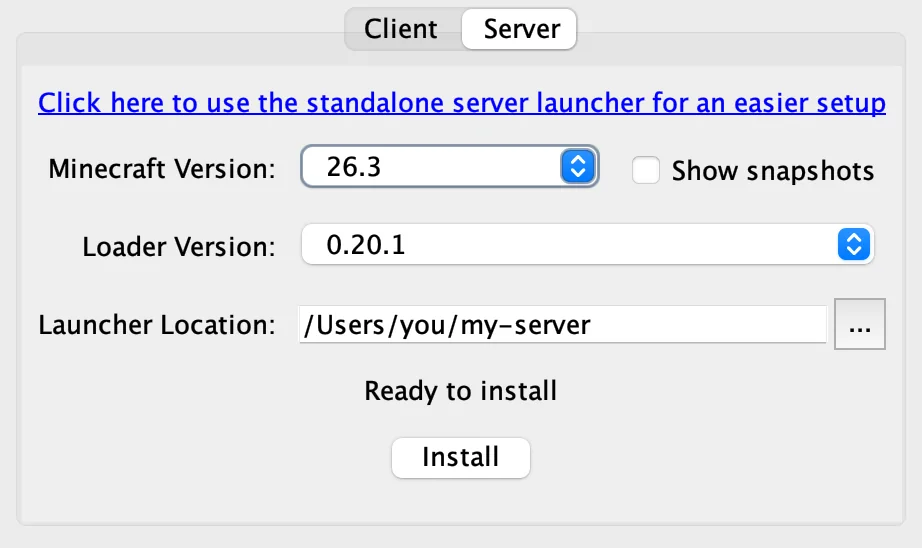
Step 5: Start it once and accept the EULA
The first start stops almost immediately. That is expected: the server has written eula.txt and is waiting for you. Open eula.txt, change eula=false to eula=true, which NeoForge's documentation describes as agreeing to abide by the Minecraft EULA, and start the server again.
On the second start the server runs, and NeoForge's documentation notes that after this first full start a mods folder will have appeared next to the run scripts. Stop it with the stop command once it reports it is done loading. If players will join from outside your network, NeoForge's documentation notes you may need to open the Minecraft port, which defaults to 25565, in your system's or network's firewall.
Step 6: Copy the mods into the server's mods folder
With the server stopped, copy in every mod from the server and both columns of your list in step 2, plus their dependencies. Dependencies matter as much on the server as on a client: a Fabric content mod that needs Fabric API will stop the server at startup without it.
This mods folder is the one next to the server jar, not the one in your own .minecraft or launcher instance. On a host, upload through the panel's file manager, or over SFTP if the host offers it.
Leave every client-only mod out. Modrinth defines client_only as a mod whose functionality is performed exclusively on the client side, so a rendering mod like Sodium or Iris has nothing to do on a dedicated server.
- Stop the server.
- Open the server's mods folder (beside the server jar, or in the host's file manager).
- Copy in the both-sides and server-side mods and every library they list as required.
- Do not copy shaders, minimaps that are client-only, or any mod whose Modrinth environment is client_only (server_side: unsupported in the older field).
- Start the server and go to step 7 before telling anyone it is ready.
Step 7: Read the startup log before anyone joins
The console, saved as logs/latest.log in the server folder, lists what loaded. Fabric prints a line saying how many mods it is loading followed by each one with its version, so you can compare that list against what you copied in. Missing dependencies and wrong-version mods are reported here in plain language before any crash report is written.
If the server stops during startup, read from the top of the error, not the bottom. The first error usually names the mod. Check first for a client-only mod, a missing library or a mod built for another loader; the crash report guide walks through reading the rest.
Step 8: Give every player an identical client set
Players need the same Minecraft version, the same loader and every both-sides mod at the same version as the server. On top of that they can add any client-only mods they like, such as shaders and minimaps, without affecting anyone else.
The reliable way is a modpack file, so the list matches by construction instead of by everyone being careful. Prism can export an instance as a Modrinth pack or a CurseForge pack, the Modrinth App has an Export modpack action on each instance, and CurseForge has an Export feature for sharing a custom profile; players import that file instead of copying mods by hand. Sending a zip of your mods folder also works, but it drifts out of date the first time somebody updates one mod on their own.
Step 9: Fix the join-screen errors
A mismatch is reported when a player connects, not at startup. Forge and NeoForge show a mod mismatch screen whose wording comes straight from their language files; each message tells you which side has to change.
Fabric Loader has no such screen in its language file. On Fabric, read the disconnect message and the player's logs/latest.log, then compare the two mod lists and versions line by line.
| Message the player sees | What it means | Fix |
|---|---|---|
| Your client is missing the following mods, install these mods to join this server: | A both-sides mod is on the server but not the client | Install those exact mods and versions on the client |
| The server is missing the following mods, remove these mods from your client to join this server: | The client has a both-sides mod the server lacks | Remove them from the client, or add them to the server and every player |
| The following mod versions do not match, install the same version of these mods that the server has to join this server: | Same mod, different version | Match the server's version exactly |
Updating the mod list later without breaking joins
Knowing how to add mods to a Minecraft server once is the easy half; updates are where working servers stop working. Treat each one as a small release: back up the world folder outside the server directory, stop the server, change the mods, start it and read the log, then publish the new pack to players. A player still on the old list gets the same mismatch messages as anyone else, so announce the change.
Removing a content mod from a running world is riskier than adding one; the removal guide covers what to do before you take it out. NeoForge's documentation is blunt about the rest: always back up your world before updating NeoForge or mods. Test big changes on a copy of the world before they reach players.
Minecraft 26.1 changed how worlds are stored, and Fabric's announcement asked players to back up worlds before moving to it. If you are moving a server from 1.21.x to 26.x, keep the old world and the old pack until the new one has run cleanly for a while.
Plugins on Paper are a different system
If you looked up how to add mods to a Minecraft server but your host set you up with Paper, stop here first. Paper runs plugins, not mods. PaperMC's own guide to adding plugins says that a mod for Forge, Fabric or similar will not run on Paper, and that dropping one into the plugins folder produces an Invalid plugin.yml error.
A few projects ship both kinds: LuckPerms, Chunky and Simple Voice Chat list both Paper and Fabric among their loaders on Modrinth. Download the build for your server's platform. If what you want adds new blocks, items or mobs, you need mods on a modded server, and every player needs them too.
Sources & further reading
- Modrinth API v2: project client_side / server_side fields
- Modrinth: New environments system (blog)
- Mojang version manifest (javaVersion per release)
- Fabric: Minecraft server launcher download and command
- NeoForge documentation: Installing a NeoForge Server
- Forge source: mod mismatch screen text (en_us.json)
- Fabric: Minecraft 26.1 announcement (back up worlds)
- PaperMC documentation: Paper
- PaperMC documentation: Adding plugins (Forge and Fabric mods will not run on Paper)
- NeoForge source: mod mismatch screen text (en_us.json)
- Fabric Loader source: 'Loading N mods' log line (FabricLoaderImpl)
- Forge 1.17.x source: server run.sh, run.bat and user_jvm_args.txt
- Fabric Documentation: Installing Mods (version compatibility)
- Prism Launcher source: Export Modrinth / CurseForge pack dialog
- CurseForge support: Creating a Custom Profile (Export)
Read next
- Minecraft Server RAM Allocation
Minecraft server RAM allocation calculator for servers and your own PC: a starting -Xmx for your mods and players, and where to set it in every launcher.
- What Java Version for Minecraft? The Full Table for Every Version
What Java version for Minecraft: 26.1+ needs Java 25, 1.20.5–1.21.11 Java 21, 1.18–1.20.4 Java 17, older Java 8. Full table, error decoder, install steps.
- How to Install Fabric for Minecraft
How to install Fabric on Windows, macOS and Linux, in Prism, Modrinth App and CurseForge, and on a server, plus Fabric API, Java 25 and fixes.
- When Will Fabric Update? Live Minecraft Status for Fabric, Forge and NeoForge
When will Fabric update to the new Minecraft version? Live status for Fabric, Fabric API, Forge, NeoForge, Sodium and Iris, read hourly from official feeds.
- How to Read a Minecraft Crash Report
How to read a Minecraft crash report: where it is in each launcher, the five lines that matter, what Caused by means, and a free analyzer that names the mod.
- How to Remove Minecraft Mods in Every Launcher
How to remove Minecraft mods in the official launcher, CurseForge, Modrinth App, Prism, ATLauncher and servers, plus disabling and Bedrock add-ons.
Back to the full How to Mod Minecraft guide for the whole install walkthrough from the beginning.

Sukie · Editor
Sukie runs How to Mod Minecraft. She writes and edits every guide on the site, works through each install path herself before publishing, and rewrites anything that turns out to be wrong. The focus here is narrow on purpose: getting mods, loaders and modded servers working without wading through forum threads.
About this site · How guides are checked · Last updated November 5, 2026
NOT AN OFFICIAL MINECRAFT PRODUCT. NOT APPROVED BY OR ASSOCIATED WITH MOJANG OR MICROSOFT.